
Back up your trading journal and move it to a new PC
Your trades can be rebuilt from your broker. Your notes cannot. How the daily backup works, how to send it to the cloud and how to restore it on a new computer.
What is in your journal, and what is not
Your journal has two kinds of content, and they are not equally easy to replace. The first kind is your trades: every entry, exit, stop, target and result. Those come from MetaTrader 5, and your broker keeps them on its server, so if you ever lose your journal file you can rebuild them by logging the same account into a terminal on a new PC and letting the app read the history again. The second kind is what only you wrote: setup names, emotions, ratings, tags, notes and screenshots. Those exist nowhere else. They are the reason to back up.
| If you lose the journal file and have... | You get back | You lose |
|---|---|---|
| No backup and no Notion copy | All trades, the calendar, Progress, the Excel reports (rebuilt from broker history, as far as the broker keeps it) | Notes, ratings, tags, screenshots, and the dashboard's older balance curve until it is rebuilt |
| A backup from last week | Everything in the backup, then the app adds the trades since from your broker's history | Notes you wrote after the backup date |
| A daily backup in a cloud folder | Everything, up to yesterday | At most a day of notes |
| An optional Notion copy | Your notes and screenshots can be re-imported from Notion once | Nothing, as long as the Notion copy was connected |
Three layers of protection
1. The automatic daily backup
Once a day the app saves a complete copy of the journal and keeps the last seven. By default they go to Documents\AI Trading Journal\Backups, which survives uninstalling the app. You do not have to do anything. If a copy cannot be written, for example because a chosen folder is on a drive that is not plugged in, the app falls back to the default folder and tells you on the Journal page.
2. A cloud folder for the backup
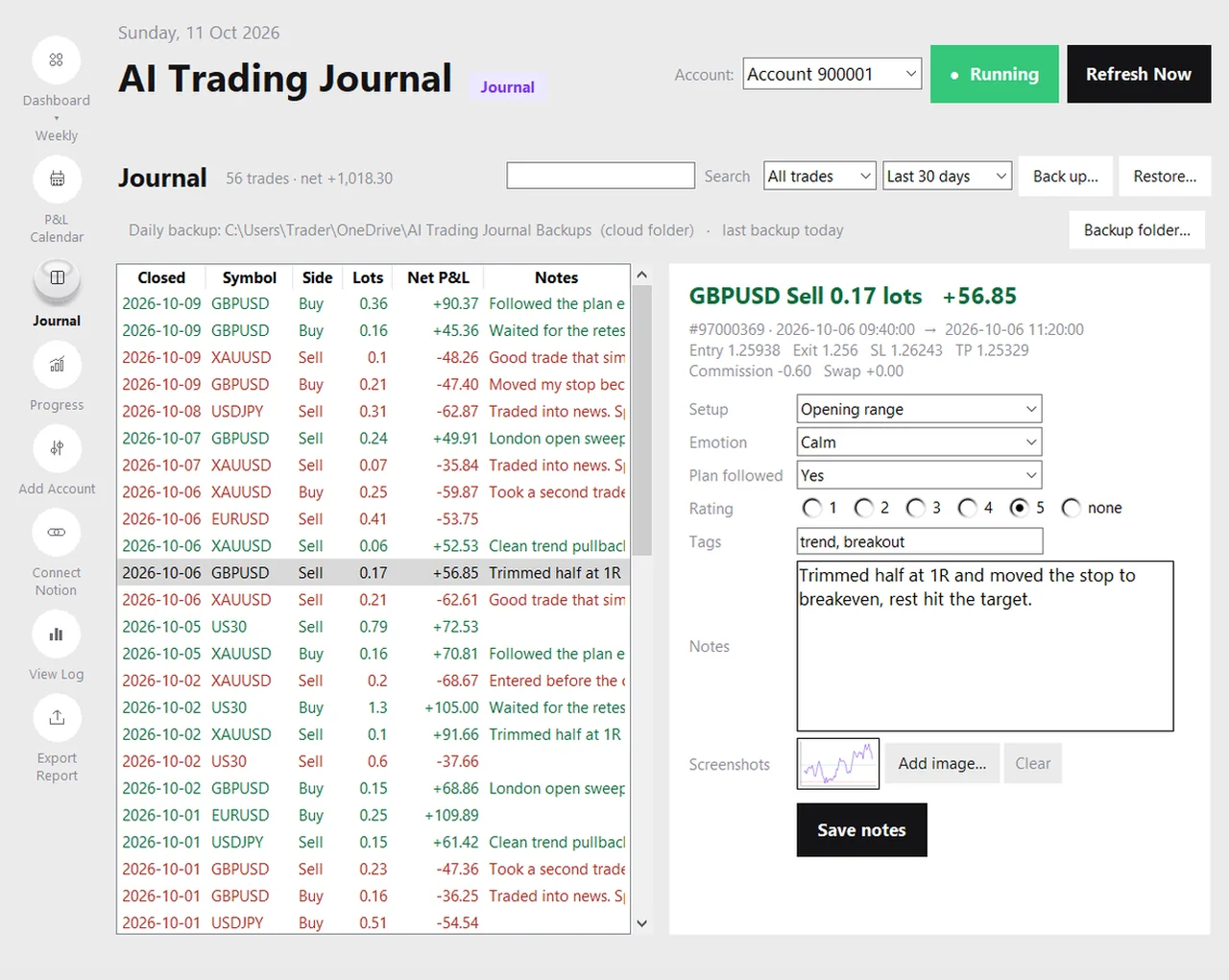
A backup on the same disk protects you from a bad click but not from a dead disk or a stolen laptop. On the Journal page, the line at the top shows where the daily backup goes and when the last one ran. Click Backup folder and choose a folder inside OneDrive, Google Drive or Dropbox. From then on the daily copy is saved there and synced to the cloud by the service you already use. The app offers this once as a tip, and warns you in amber if the last backup is more than a week old.
3. A manual copy whenever you like
Back up on the Journal page saves the whole journal, with your goals and screenshots, as a single .zip file wherever you choose: a USB stick, an external disk, an email attachment to yourself. It is a consistent copy, so you can press it while the app is running. Do it before a Windows reset, before changing PCs and before anything you are unsure about.
Moving to a new PC, step by step
- On the old PC, open the Journal page and press Back up. Save the file somewhere you can reach from the new PC.
- Install AI Trading Journal on the new PC and sign in with your license key. (A license covers one device at a time, so move it on the same day.)
- Open MetaTrader 5 on the new PC and log in to the same account.
- In the app, click Add Account, pick your account and click Create my journal. The app reads your whole history from the broker.
- Open the Journal page and press Restore. Choose the backup file and confirm. The app keeps a copy of the journal it is replacing, restores yours, and reads your history again on the next sync so any trade made after the backup date is added back.
- Check a few trades and a few notes. Done. Your notes and screenshots are back.
If your Documents folder is synced by OneDrive and you sign in with the same Microsoft account on the new PC, the journal file may already be there before you start. Even then, press Add Account first so the new PC knows which account to read.
If you had no backup
Do not panic. Install the app on the new PC, log MT5 into the same account and click Add Account. Your trades come back from your broker's history, and so do the calendar, the progress page and the Excel reports. What you cannot recover is the writing that existed only in the lost file. If you had connected Notion, your notes and screenshots can be imported from there once. If you did not, they are gone, which is exactly why a cloud backup folder is a good idea.
Habits that keep a backup useful
- Choose a cloud folder once, then forget about it. The tip on the Journal page takes ten seconds.
- Test a restore on the first day. Press Back up, then Restore, and confirm your notes and screenshots are still there. A backup you have never restored is a hope, not a backup.
- Keep one copy off the PC. A second copy on an external disk covers a ransomware or hardware failure.
- Do not edit the file by hand. It is a database. Use the app's buttons.
- Back up before big changes: a Windows reinstall, a new license activation, a move between PCs.
What a backup contains, and who can see it
A backup is a .zip that contains journal.db (your trades, daily figures, notes, ratings, tags and monthly goals) and your screenshot images. The backup is one .zip file that holds the journal, your goals and every screenshot you attached, so nothing needs to be copied separately. If you choose a cloud folder, the provider you chose stores the copy under its own terms. We never see your backups.
More on how the journal works is in the local journal guide. If you also keep a Notion copy, the optional Notion guide explains what is copied and when.
Replacing your computer? Follow how to move your trading journal to a new PC for the safe restore order.
Frequently asked questions
Where does the automatic backup go?
Does uninstalling the app delete my journal?
How do I move my journal to a new PC?
What if I never made a backup?
Related guides
- A local trading journal for MT5
- P&L calendar for MT5
- Trade notes, ratings and screenshots
- Trading progress and goals
- An offline trading journal for Windows
- How to set monthly trading goals
- Import your whole MT5 history
- How to tag trades
- Trade screenshots for your journal
- An MT5 trading journal with no subscription
- All trading journal comparisons
Keep your journal safe: try it free for 7 days
Free for 7 days, no card required. After that, a one-time $19.99 purchase. No subscription. Also on the Microsoft Store.
One-time $19.99, no monthly fee · your MT5 login never leaves your PC · trades go into your own journal on your PC, not through our servers.
Start free 7-day trial