
An offline trading journal for Windows: what really works without internet
Local storage, offline use and network silence are three different promises. Here is what AI Trading Journal does on your PC, what it checks online and how to test any journal.
Three things people mean by “offline”
When a trading journal says it is offline, it can mean three different things, and they are not the same promise. The first is that your data is stored on your own computer instead of on a vendor’s servers. The second is that the journal keeps working when the internet is down. The third is that the program never talks to the internet at all. Most desktop tools can honestly claim the first, many can claim the second for a while, and very few can claim the third once they need a license check, an update or a data feed.
It is worth separating the three before you choose, because the questions behind them are different. Storage is about who owns your history if the vendor closes or you stop paying. Offline use is about whether you can review your trades on a flight or during a broken connection. Network silence is about privacy and about how much you have to trust what the program does in the background. AI Trading Journal is built for the first two and is explicit about the little it does online, which is the subject of this page.
What runs on your PC and what needs a connection
| Part of the app | Needs internet? | Notes |
|---|---|---|
| Reading closed trades from MetaTrader 5 | No | The app reads the terminal on the same PC. The terminal itself needs a broker connection to receive new trades, but the history it already holds is local. |
| Saving the journal | No | Everything is written to one file, journal.db, in Documents\AI Trading Journal. |
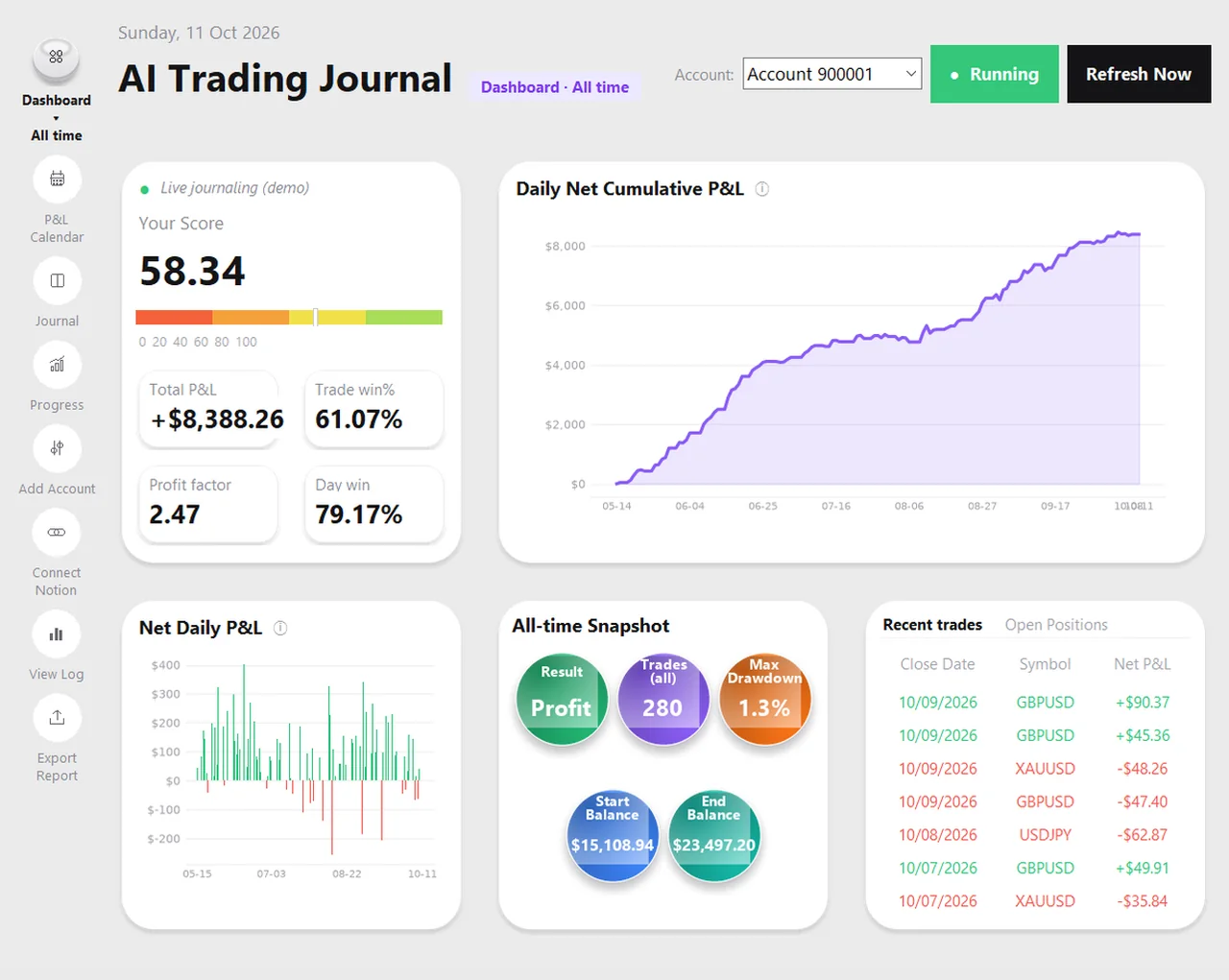
| Dashboard, P&L calendar, Progress, Journal page | No | They are drawn from the file on your PC, so you can open them with the network switched off. |
| Notes, ratings, tags and screenshots | No | Stored in the same file and in a folder of images next to it. |
| Export Report (Excel) | No | The workbook is built on your PC from your journal. |
| Daily backup | No | Written to a folder on your disk. If you choose a cloud folder, your cloud service uploads it, not the app. |
| First activation of a license or trial | Yes, once | The app asks the activation server to register the key or start the trial. |
| Periodic license re-check | Yes, when online | See the next section for how long the app tolerates being offline. |
| Optional Notion copy | Yes | Only if you connect Notion yourself. |
| Installing updates | Yes | From the Microsoft Store or a new installer. |
How long can it stay offline?
A license check is the one thing that does need the internet, so the useful question is how often. For a paid license the app trusts a successful check for seven days. After that it tries again whenever it can reach the server. If it cannot, for example because you are travelling, it keeps working, and it only insists on a fresh check once a cached check is more than 45 days old. For the free trial the checks are more frequent, about every twelve hours when you are online, and the app tolerates up to three days without a successful check, because a trial has no long-term trust to extend and the countdown has to stay honest.
| Re-check when online | Longest time offline | |
|---|---|---|
| Paid license | About every 7 days | Up to 45 days since the last successful check |
| 7-day free trial | About every 12 hours | Up to 3 days since the last successful check |
Past those limits the app asks for a fresh check before it opens, and as soon as your connection is back one check fixes it. Nothing is deleted while you wait: the journal file stays exactly where it was.
What the license check actually sends
The check contains your license key and a device identifier, so the server can tell one device from another. It does not contain your trades, your balance, your account number or your notes. That is why the app can say that your journal never leaves your PC unless you decide to connect Notion. A license covers one device at a time, so a device identifier is how that rule is applied.
Offline in practice: four situations
- Travelling with a laptop. Open the app on the plane. The dashboard, calendar, Progress page and Journal page all work, and you can write your notes for the week. If MetaTrader 5 is closed, no new trades are read, but nothing is lost, because the next sync reads from the last day it saw.
- An unreliable home connection. The app does not care. It reads your terminal and saves to disk. A dropped connection only matters to MetaTrader 5 itself and to the optional Notion copy, which catches up later.
- A long break from trading. If the PC is off for a few weeks, the first sync afterwards notices the gap and reads everything since the last day it saw. A paid license is fine for up to 45 days without a successful check.
- A trial on a PC that is rarely online. The trial needs a check at least every three days, so this is the one case where a poor connection can get in the way. Connect once and it carries on.
A seven-point test for any journal’s offline claim
Whatever journal you are considering, you can test the claim in ten minutes. Do these before you pay for anything:
- Switch off Wi-Fi and open it. Does it start, and can you still open old trades and write a note?
- Find the data file. Can you see it in a folder you know, copy it and open the folder in a file manager? If you cannot say where your history lives, it is probably not on your PC.
- Ask what happens at the license check. How long is the grace period, and what exactly is sent?
- Check what it needs from your broker. A journal that asks for your investor or master password sends that credential somewhere. One that reads the terminal on your PC does not.
- See where backups go by default. A backup that silently uploads to the vendor is a cloud copy, whatever the product calls itself.
- Look for an account. A journal that needs a login before it shows your trades is, in practice, a cloud journal with a desktop window.
- Read the privacy page for the word “servers”. It should say plainly what is and is not uploaded.
How the options compare
| Approach | Works with no internet? | Where the history lives | Main cost |
|---|---|---|---|
| Spreadsheet you keep yourself | Yes, completely | A file you own | You type every trade. The free template has the formulas |
| Local app that reads MT5 (this one) | Yes, apart from the license check | A file on your PC | $19.99 once after a free 7-day trial |
| Cloud journal with broker sync | No | The vendor’s servers | Usually a subscription, and your history can end with it |
| Expert Advisor that posts to a service | No | The service you post to | Setup effort, and an outside service holds your data |
None of these is wrong. A cloud journal gives you a phone view that a Windows app cannot, and a spreadsheet gives you total control. The point is to choose knowing which promise you are buying. The comparison of automatic tracking methods goes through them in more detail.
Offline is not the same as private or safe
A journal on your PC is only as private as your PC. Anyone who can sign in to your Windows account can open the file, so use a sign-in password and consider turning on disk encryption such as BitLocker if you carry a laptop. And a file on one disk is one disk failure away from being lost, which is why the app writes a daily backup and why it is worth pointing that backup at a cloud folder you control. The backup guide shows how, and the local journal guide explains what is stored where.
Honest limits
- It is a Windows desktop app for MetaTrader 5. There is no phone or web version, so offline here means offline on that PC.
- MetaTrader 5 has to be open and logged in for new trades to be read. The app does not start a closed terminal.
- The app needs a connection to activate a license or start a trial the first time.
- A MetaTrader 5 terminal running on a remote server cannot be read from a different PC. The app and the terminal need to be on the same Windows machine.
- This page describes how the app behaves today. If the limits above change in a future version, this page will be updated.
Frequently asked questions
Does AI Trading Journal work without internet?
How long can a paid license stay offline?
What if I am offline during the free trial?
Does the license check send my trades?
Can I use it on a laptop without Wi-Fi?
Related guides
- A local trading journal for MT5
- P&L calendar for MT5
- Trade notes, ratings and screenshots
- Trading progress and goals
- Back up your journal and move it to a new PC
- How to set monthly trading goals
- Import your whole MT5 history
- How to tag trades
- Trade screenshots for your journal
- An MT5 trading journal with no subscription
- All trading journal comparisons
Try the offline journal free for 7 days
Free for 7 days, no card required. After that, a one-time $19.99 purchase. No subscription. Also on the Microsoft Store.
One-time $19.99, no monthly fee · your MT5 login never leaves your PC · trades go into your own journal on your PC, not through our servers.
Start free 7-day trial