
Trade screenshots for your journal: what to capture and how to review them
A picture shows what memory rewrites. What to capture at entry and exit, how to take it fast, how to attach it to the trade and a weekly review that actually uses it.
Why a picture beats a memory
A trade’s numbers tell you what happened. A screenshot tells you what it looked like, and that is the part memory distorts fastest. A week later you will remember a losing trade as a clear mistake and a winning trade as a clear read, because you now know the outcome. The chart you saved at the time shows the market as you saw it, with the information you actually had. Reviewing screenshots is how you separate a bad decision from a bad outcome, and a good decision that lost from a lucky one that won.
This guide covers what to capture, how to take the pictures quickly, how to attach them to the trade in AI Trading Journal and where they are kept. The Journal page lets you attach as many images as you like to each trade.
What to capture for each trade
| Screenshot | When | What it shows | What you learn later |
|---|---|---|---|
| Setup chart | Before or at entry | The structure, level or signal you acted on, with your stop and target drawn | Did I trade my plan, or something that only looked similar? |
| Higher timeframe | At entry | The larger context for the same symbol | Was I trading with or against the bigger picture? |
| Exit chart | At the exit | Where price went and where you left | Did I exit by plan, or by fear? |
| Aftermath | A little later (optional) | What price did after you were out | Is my exit rule too early or too late over many trades? |
You do not need all four on every trade. A good habit is one setup chart for every trade and the full set only for the trades worth studying: your best executions, your worst losses and anything that surprised you.
How to take them quickly
- Use the Windows snipping shortcut. Press Windows + Shift + S, drag around the chart and the picture goes to the clipboard and a small preview. Save it to a folder you will remember, such as your Desktop or Pictures.
- Or save the chart from MetaTrader 5. The terminal can save a chart as a picture from its File menu, which captures the whole chart window without the rest of the screen.
- Draw first, then capture. Add your stop, target and the level you traded to the chart before you take the picture. An unmarked chart is much harder to read later.
- Capture at the moment. Take the setup shot when you enter, not after the trade ends. A picture taken after the result is a picture of the answer.
- Keep it readable. Include the symbol and timeframe in the shot, and avoid a screen cluttered with windows. Crop out anything personal.
Attaching a screenshot in AI Trading Journal
- Open the Journal page and select the trade.
- Press Add image and choose the picture.
- The app copies the image next to your journal, so the original can move or be deleted without breaking the link.
- Add a line or two in the notes box about what the chart shows. Your entry is saved when you pick another trade or press Save.
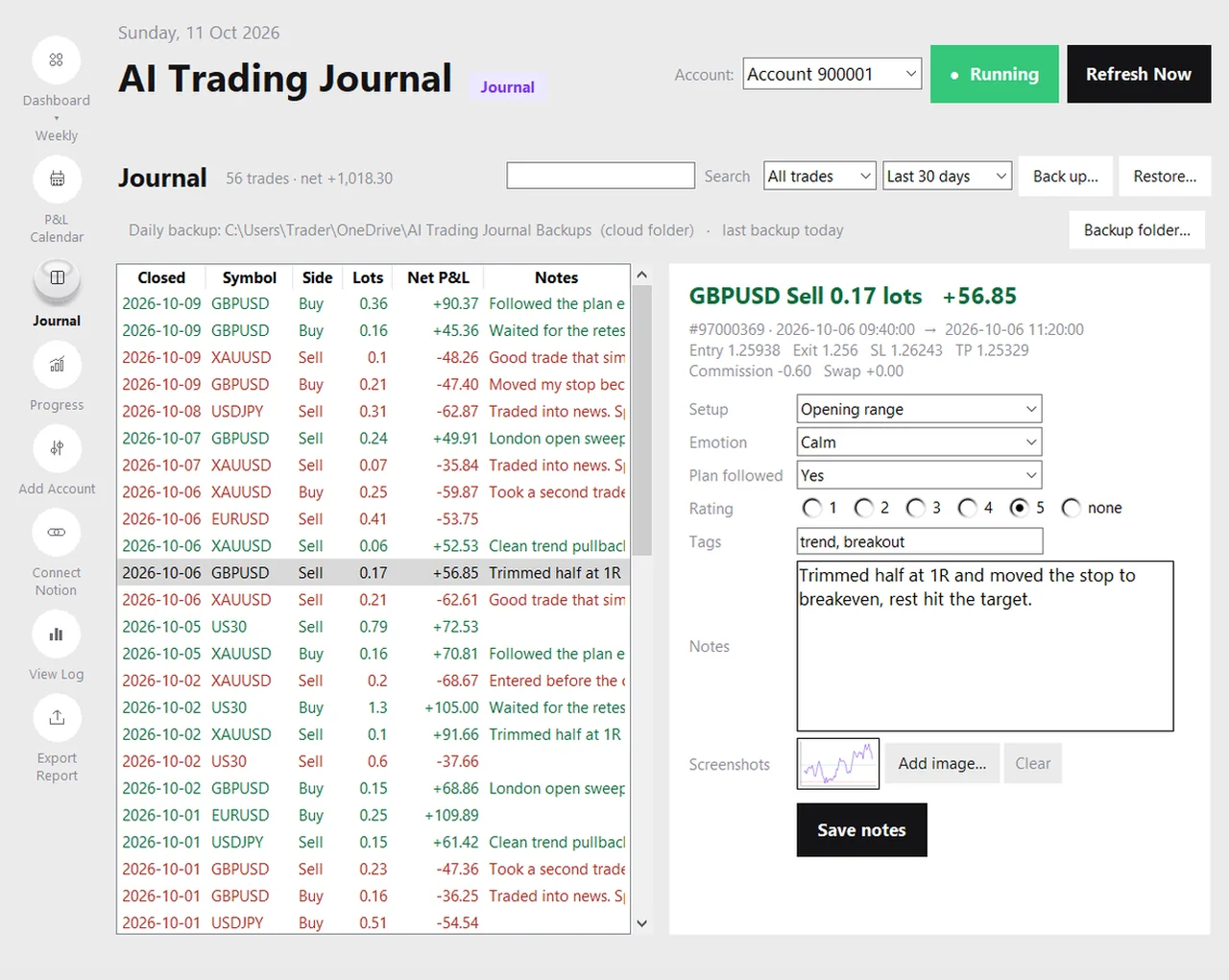
The app does not capture charts for you and there is no price-chart replay. The screenshots are plain images that you attach, which keeps the feature simple and keeps the files on your PC.
Where the pictures are kept
| Question | Answer |
|---|---|
| Where are they stored? | In a folder called journal_images next to your journal in Documents\AI Trading Journal. They stay when you uninstall the app. |
| Are they in the backup? | Yes. The daily backup and the Back up button save one .zip that holds the journal, your goals and every screenshot you attached. |
| What happens on a new PC? | Restore puts the images back next to the journal and points your notes at them, so the screenshots appear on the new PC too. |
| Do they go to Notion? | Only if you connect Notion. Images sent there are limited to 5 MB each. |
| Do they go to your servers? | No. They stay on your PC unless you choose to copy them to Notion. |
If the backup folder is inside OneDrive, Google Drive or Dropbox, your cloud service uploads the zip, including the pictures, under its own terms. The backup guide shows how to choose that folder.
Keep the folder from growing out of hand
A chart screenshot is usually a few hundred kilobytes, and a hundred of them is a manageable folder. A journal with thousands of images is a larger one, and the daily backup copies them all. That is another reason to be selective: capture a setup shot for every trade if you like, but add extra shots only where they will teach you something. If you ever need to reduce the size, save screenshots as compressed images and avoid full-screen captures of a multi-monitor setup.
A weekly review that uses the pictures
- Open the Journal page and filter to the last seven days.
- Sort your attention: first your biggest loss, then your best trade, then one trade you rated lowest.
- For each, look at the setup picture before you read your note. Ask: would I take this trade again, given only what is on the chart?
- Read your note and compare. If the picture and the note disagree, trust the picture.
- Write one sentence of what you will do differently, and tag the trade if a pattern is emerging.
The weekly review checklist puts this into a full routine, and the tagging guide shows how to label the patterns you find.
Mistakes to avoid
- Screenshotting only losers. You then never see what your good trades look like, and you cannot tell whether your losers look any different.
- Taking the picture after the outcome. It records the answer, not the decision.
- Unmarked charts. Without your stop, target and level, the picture is a chart, not a record of your plan.
- Sharing without cropping. Account numbers and balances can be visible in a terminal screenshot. Crop them out before you post a picture anywhere.
- Never reviewing. A screenshot you do not open helps no one. Put the review in your calendar.
Honest limits
- Screenshots are attached by you. The app does not take them automatically.
- They are plain images. There is no chart replay or annotation tool inside the app.
- Images copied to Notion are limited to 5 MB each.
- The screenshots live on your PC, so review them on the PC where the journal is, or in the optional Notion copy.
More on what the Journal page records is in the notes and screenshots guide, and the local journal guide explains where everything is stored.
For the MetaTrader 5 steps, see how to screenshot an MT5 trade for your journal.
Frequently asked questions
How do I attach a screenshot to a trade?
Are screenshots included in the backup?
Does the app take screenshots automatically?
Where are my screenshots stored?
Is there a size limit?
Related guides
- A local trading journal for MT5
- P&L calendar for MT5
- Trade notes, ratings and screenshots
- Trading progress and goals
- Back up your journal and move it to a new PC
- An offline trading journal for Windows
- How to set monthly trading goals
- Import your whole MT5 history
- How to tag trades
- An MT5 trading journal with no subscription
- All trading journal comparisons
Attach your first screenshot: free for 7 days
Free for 7 days, no card required. After that, a one-time $19.99 purchase. No subscription. Also on the Microsoft Store.
One-time $19.99, no monthly fee · your MT5 login never leaves your PC · trades go into your own journal on your PC, not through our servers.
Start free 7-day trial