
A local trading journal for MT5: your data stays on your PC
AI Trading Journal reads your MetaTrader 5 history and builds your journal in a file on your own PC. Here is what it saves, how it stays up to date and why that beats a cloud account for most traders.
What “local” means here
Most trading journals are websites. You create an account, your trades are uploaded to the vendor's servers, and the journal lives there for as long as you keep paying. AI Trading Journal works the other way round. It is a Windows app that reads your MetaTrader 5 terminal and keeps the journal in a single file on your own PC, in the folder Documents\AI Trading Journal. There is no account to create, no upload of your trades and no login to remember. The only thing the app sends over the internet is a license check against our activation server, and that check contains a license key and a device identifier, never your trades.
That design has three consequences worth stating plainly. The journal keeps working when your internet is down, because reading your terminal and saving to your PC are local. The journal is yours whether or not you keep paying, because it is a file in your own Documents folder and not a row in someone's database. And privacy is the default rather than a setting: nothing leaves your computer unless you choose to connect an optional extra such as Notion.
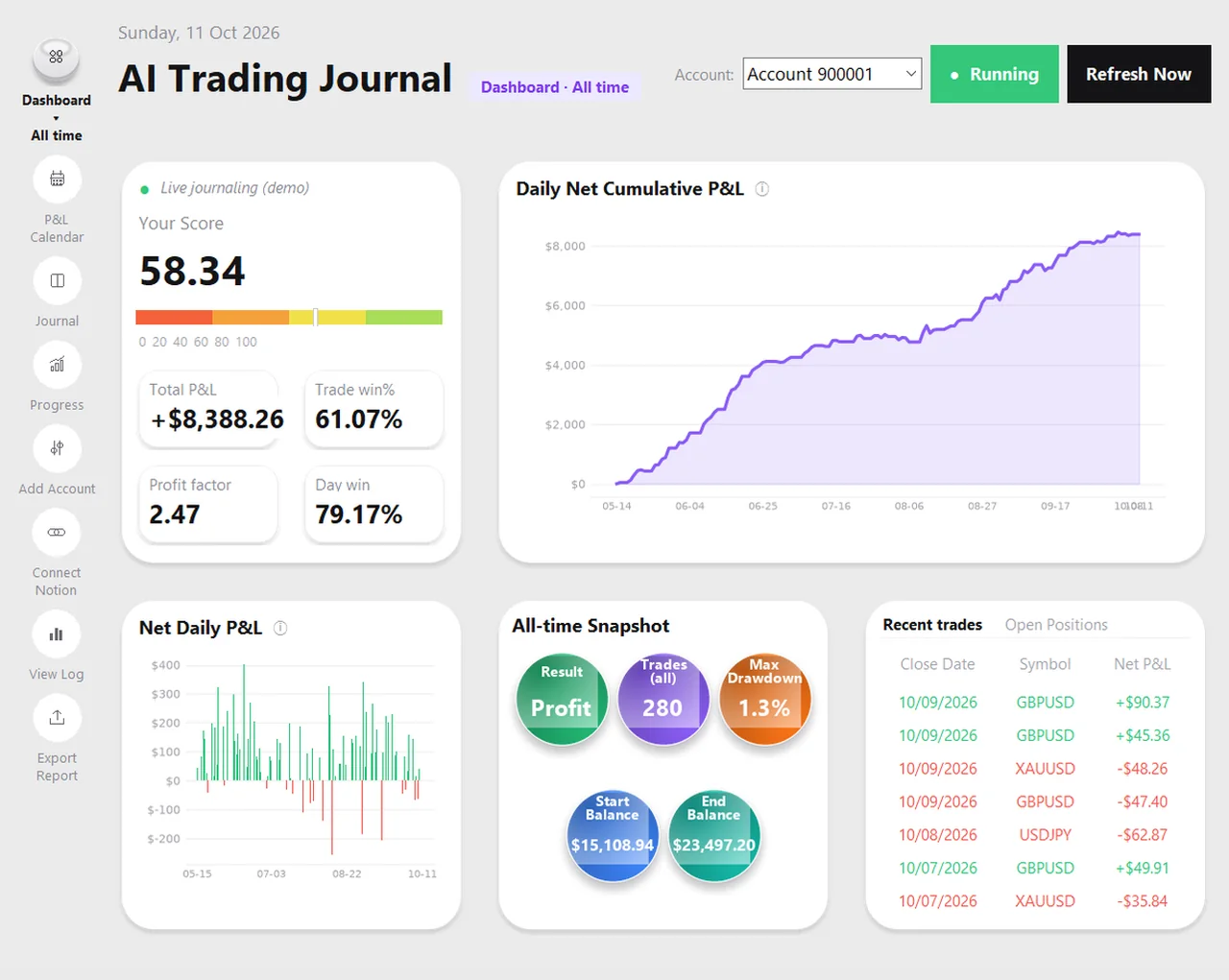
What gets saved for every trade
The app records one entry per closed position, not one per raw deal. A position that was closed in two or three parts is one entry with the parts added together, and its date is the date of the last exit. For each entry the journal holds:
- Symbol and direction, buy or sell.
- Volume, the lot size you opened with.
- Open and close time, on your broker's server clock, the same clock the MT5 History tab shows.
- Entry and exit price, plus the stop loss and take profit that were set.
- Profit, commission and swap, and the net result, which is what your balance actually moved by.
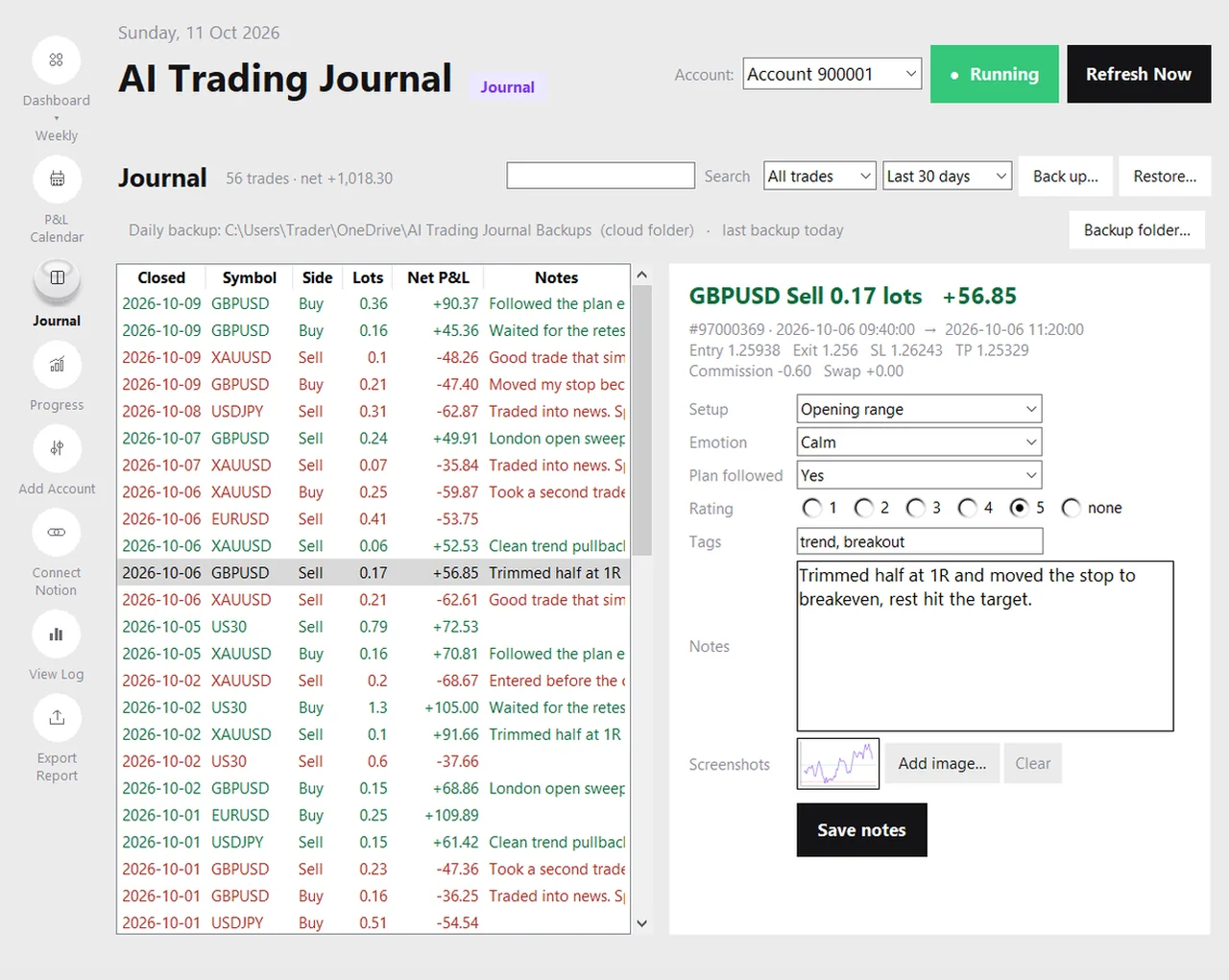
- Your own notes: setup, emotion, whether you followed your plan, a rating from one to five, tags, free-text notes and screenshots.
Per day it also keeps a daily recap: the day's result, net P&L, number of trades, win rate and drawdown, and the account balance at the end of the day. The notes and screenshots page explains how to use the part only you can write.
The first run reads your whole history
When you click Add Account and pick your logged-in MT5 account, the app does not start from an empty page. It reads the whole trade history your broker holds for that account, in one pass, and builds the journal from it: every closed trade, every deposit and withdrawal, and the balance of every past day. That is why the P&L calendar can show a month from last year on the first day you install the app, and why the growth chart starts at your first deposit instead of at today.
After that first import the app keeps itself up to date through a Windows scheduled task that runs every five minutes. Each run looks at the last couple of days, adds anything new and leaves everything else alone. If the app was not running for a while, for example because the PC was off for a week, the next run notices the gap and reads from the last day it saw, so no trade is missed. One honest limit: a broker that only keeps part of your history online can only give back that part.
Dates and amounts follow your broker
MetaTrader 5 stamps every trade with the broker's server clock, which can run several hours ahead of your own clock. The app uses the server date for everything, so a trade that closed at 00:10 server time belongs to that new day in the journal, in the calendar and in the Excel report, exactly as it does on the History tab of your terminal. The amount on a trade is the net result: profit plus commission plus swap across every deal of the position, so the totals match the movement of your balance rather than a gross figure that ignores costs.
What you can do with the journal
| Page | What it answers |
|---|---|
| Dashboard | How am I doing over the last day, week, month or all time? Score, win rate, profit factor, cumulative and daily P&L, drawdown |
| P&L Calendar | Which days made or lost money, and how did each week and month end? See the P&L calendar guide |
| Journal | What did I think on each trade? Search it, filter wins and losses, and add notes, ratings, tags and screenshots |
| Progress | Am I growing month by month, and am I on track for my own monthly goals? See progress and goals |
| Export Report | Can I get this into Excel? Yes: key figures, six charts, a daily sheet, a trades sheet and a calendar tab per month. See the Excel report guide |
Where the file lives, and why it is in Documents
Programs usually keep their data inside their own folder, and that data disappears when you uninstall them. A journal should not. The app therefore stores journal.db in your Documents folder, next to a folder of screenshots and a folder of automatic backups. Uninstalling the app does not touch them, a reinstall finds them again, and if your Documents folder is synced by OneDrive the journal is copied to the cloud along with your other documents. If you used an earlier version, the first start of the new version moves your existing journal into that folder and keeps the old file renamed, so nothing is lost on the way.
Because the journal is one file, it is also easy to reason about. You can see its size, copy it, and keep it on a USB stick. The backup guide covers the daily automatic copy, choosing a cloud folder for it, and moving the whole journal to a new PC.
Local compared with a cloud journal
| Question | Cloud journal | AI Trading Journal |
|---|---|---|
| Where are your trades stored? | On the vendor's servers | In a file on your own PC |
| Do you need an account? | Yes | No. A license key, and none for the trial |
| Does it work offline? | Usually not | Yes. Only the license check needs the internet |
| What if you stop paying? | Access and history can end with the subscription | The journal stays on your PC |
| Does it need your broker login? | Many do, or an Expert Advisor that sends data out | No. It reads your logged-in MT5 terminal |
| Can you use it on a phone? | Often yes | No. It is a Windows desktop app |
| What does it cost? | Usually a monthly or yearly subscription | A one-time $19.99 after a 7-day free trial |
Notion is optional
Earlier versions of the app wrote every trade into a Notion workspace, and many traders liked having their journal next to their other notes. That is still possible. Click Connect Notion in the sidebar and the app creates a daily database and a trades database in your own Notion workspace, copies your history to it in the background, imports any notes you had already written there, and from then on copies new trades, notes and screenshots as they appear. The journal on your PC stays the main copy, so a problem on the Notion side never costs you data. The step-by-step version is in the optional Notion guide.
Honest limits
- It is a Windows desktop app for MetaTrader 5 only. MT4 and cTrader are not supported.
- MetaTrader 5 has to be open and logged in for the app to read it. It does not start a closed terminal on its own.
- There is no phone or web version, so you review the journal on the PC where it lives (or in the optional Notion copy, which works anywhere Notion does).
- It is a record of your own trading, not an audited statement, and not investment advice. Compare it with your broker's statement before relying on a figure.
- One license covers one device at a time.
How to start
- Install the app and start the free 7-day trial. No card is needed.
- Open MetaTrader 5 and log in to the account you want to journal.
- Click Add Account in the app, pick your account and click Create my journal.
- Wait a minute while your history is imported, then open the dashboard, the calendar and the Journal page.
If you want to compare before you install, the comparison pages set it against TradeZella, TraderSync, Tradervue, Edgewonk and the free options, and the no-subscription guide works through the cost over three years.
One practical reason to keep a journal local is that it needs no password from your broker. See MT5 investor password and your trading journal.
A local journal makes backups matter. See moving your trading journal to a new PC.
Frequently asked questions
Is my trading data sent to your servers?
Do I need a Notion account?
Where is the journal file stored?
Does it read my whole account history?
Can it place or change trades?
Related guides
- P&L calendar for MT5
- Trade notes, ratings and screenshots
- Trading progress and goals
- Back up your journal and move it to a new PC
- An offline trading journal for Windows
- How to set monthly trading goals
- Import your whole MT5 history
- How to tag trades
- Trade screenshots for your journal
- An MT5 trading journal with no subscription
- All trading journal comparisons
Try the local journal free for 7 days
Free for 7 days, no card required. After that, a one-time $19.99 purchase. No subscription. Also on the Microsoft Store.
One-time $19.99, no monthly fee · your MT5 login never leaves your PC · trades go into your own journal on your PC, not through our servers.
Start free 7-day trial