
A P&L calendar for MT5: every trading day at a glance
See every trading day as a green or red tile with its result and trade count, plus weekly totals and a month summary. How it works, how to read it and what to look for.
Why a calendar beats a list of trades
A list of trades tells you what happened. A calendar tells you what your trading looked like. When every day is a tile coloured by its result, patterns that hide in a long list become obvious in seconds: the cluster of red days after a big win, the week where you traded twice as much as usual, the Fridays that never end well, the month that was saved by one good day. Traders who review a calendar once a week tend to notice these things sooner than traders who only look at their balance.
The P&L Calendar page of AI Trading Journal draws that picture for you from your own MT5 history. There is nothing to build and nothing to fill in: open the page and the current month is there, with every trading day already coloured.
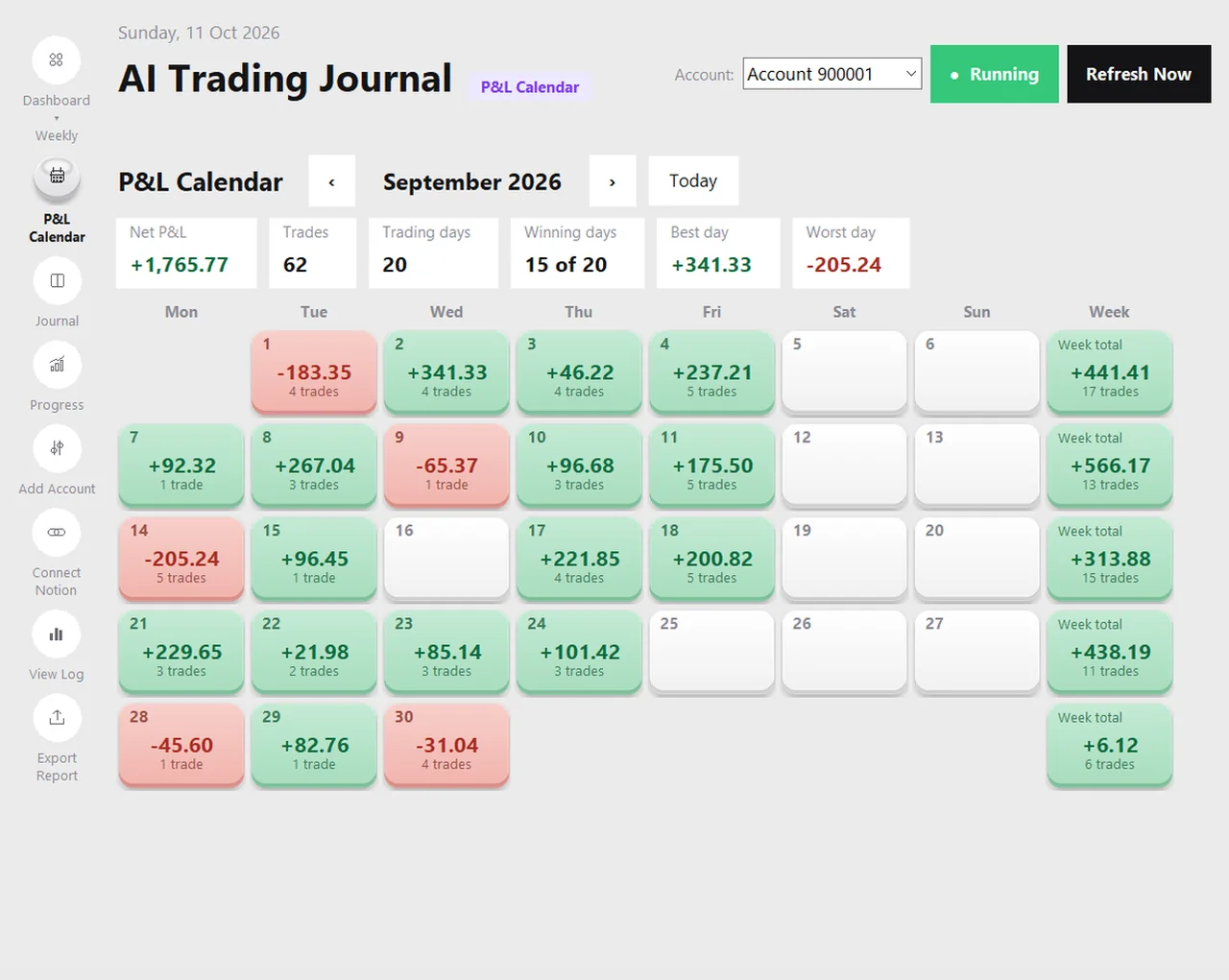
What each tile shows
- The date in the top corner of the tile.
- The net result of the day, profit plus commission plus swap of the trades that closed that day.
- The number of trades that closed that day.
- The colour: green for a profit, red for a loss, white for a day without closed trades. Today is outlined so you can find it.
- A week-total tile at the end of every row, with the week's net result and trade count.
Above the grid a strip summarises the month: net P&L, number of trades, trading days, winning days (for example 15 of 20), the best day and the worst day. The arrows move you to the previous or next month, and Today jumps back to the current one. Because your whole history is imported on the first run, you can go back as far as your account goes.
Which day does a trade belong to?
Every trade is dated by the day it closed, on your broker's server clock. That matters more than it sounds. A trade you opened on Monday and closed on Tuesday is a Tuesday trade. A trade that closed at ten past midnight server time belongs to the new day, even if it is still the previous evening where you live, because that is how the History tab of MetaTrader 5 dates it. If a position was closed in parts, the whole position counts on the day of its last exit. Using the broker's clock means the calendar always agrees with your terminal, which is the number you will check it against.
Six questions to ask your calendar every week
- Which weekday is my worst? Look down the Monday column, then the Friday column. A column that is mostly red deserves a rule, such as a smaller size on that day.
- Do my red days come in groups? Two or three red tiles in a row often mean tilt or a changed market, not three separate bad trades. Open those days in the Journal page and read your notes.
- Are my busy days my best days? Compare the trade counts printed on the tiles. If your highest counts sit on your reddest tiles, you probably overtrade when you are losing. The overtrading guide shows how to cap it.
- Is one day carrying the month? Check the best day against the month total. A month that is positive only because of one tile is fragile, and worth knowing.
- What did I do after my best day? The day after a big win is a classic place to give profit back through bigger size.
- How many days did I not trade? White tiles on days you planned to trade can mean the plan and the habit have drifted apart.
A worked example, with hypothetical numbers
The table below is invented to show how to read a week. It is not from a real account.
| Day | Trades | Net result | What to look at |
|---|---|---|---|
| Monday | 2 | +$84 | Two trades, small size, a calm start |
| Tuesday | 5 | -$131 | Trade count more than doubled. What changed after the first loss? |
| Wednesday | 1 | +$47 | Back to normal. One trade, one rule followed |
| Thursday | 0 | No trades. Was this a plan, or a pause after Tuesday? | |
| Friday | 3 | +$112 | Good day. Check the notes: what was the setup? |
| Week total | 11 | +$112 | Positive week, but Tuesday cost more than Monday and Wednesday earned |
Nothing in that table is a verdict. It is a list of questions, and every one of them can be answered by opening the day in the Journal page and reading what you wrote at the time.
The same calendar in Excel
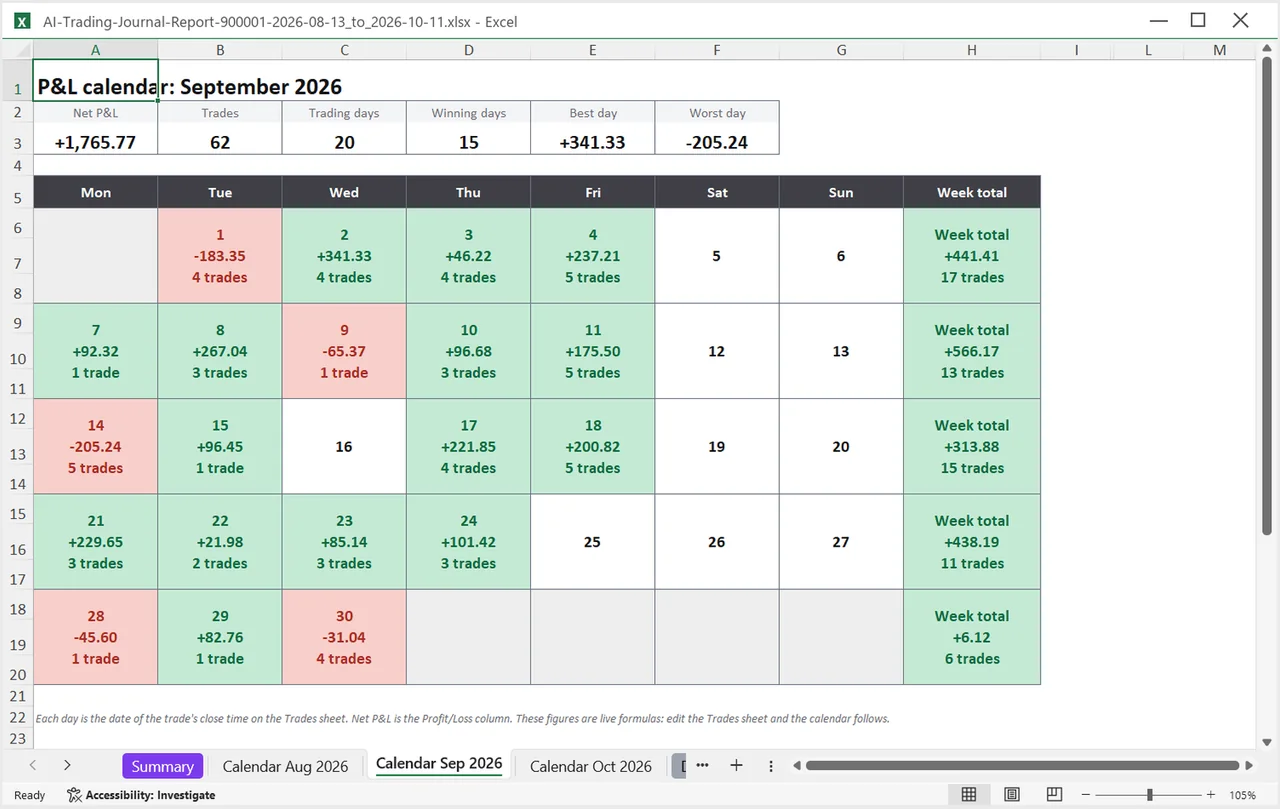
When you click Export Report and choose a period of two or three months, the Excel workbook gets one calendar tab per month, placed right after the Summary sheet. Every day is a single merged cell with the same colours, with the date, the net result and the trade count, and a week-total cell at the end of each row. Every number on those tabs is a live formula over the Trades sheet, so editing a trade changes the calendar. That makes the workbook handy for a monthly review you keep, print or share.
Common mistakes when reading a calendar
- Reading too much into one month. Twenty trading days is a small sample. Look for patterns that repeat over several months before you change your approach.
- Ignoring costs. The tiles use the net result, so commission and swap are already inside. A gross view would look better and be wrong.
- Forgetting deposits. The calendar shows trading results, not balance changes. A deposit or withdrawal does not colour a tile.
- Judging a partial month. The current month is incomplete until it ends. Compare it with other months only at the end.
If you want to build a calendar yourself, the P&L calendar template guide shows how to do it in Notion or a spreadsheet. If you would rather have it appear on its own, install the free trial and open the page. The local journal guide explains where the data behind it comes from.
A calendar makes your best day easy to spot. If you trade with a prop firm that limits how much one day may contribute, the consistency rule calculator turns that tile and your total into a share.
Frequently asked questions
Does the P&L calendar need MetaTrader 5 to be open?
How far back does the calendar go?
Why does a trade sit on the day it closed and not the day it opened?
Can I see the calendar in Excel?
Related guides
- A local trading journal for MT5
- Trade notes, ratings and screenshots
- Trading progress and goals
- Back up your journal and move it to a new PC
- An offline trading journal for Windows
- How to set monthly trading goals
- Import your whole MT5 history
- How to tag trades
- Trade screenshots for your journal
- An MT5 trading journal with no subscription
- All trading journal comparisons
See your own calendar after a free 7-day trial
Free for 7 days, no card required. After that, a one-time $19.99 purchase. No subscription. Also on the Microsoft Store.
One-time $19.99, no monthly fee · your MT5 login never leaves your PC · trades go into your own journal on your PC, not through our servers.
Start free 7-day trial