
Import your whole MT5 history into a trading journal, and check it is right
A journal that starts empty wastes your best data. Three ways to load an MT5 history, the traps that skew the totals and a five-minute check against your broker statement.
Why the old trades matter
A journal that starts empty on the day you install it throws away the most valuable data you have: the trades you have already made. Every analysis a journal offers needs a sample. A profit factor from ten trades is a rumour, an average result per trade from two hundred is something you can reason about, and a monthly curve needs months. Importing your whole MetaTrader 5 history on day one gives you the larger sample immediately, fills the P&L calendar with real months, and lets the growth chart start at your first deposit instead of at today.
This guide compares the three common ways to get an MT5 history into a journal, lists the traps that make an import look right and be wrong, and shows how to check the result against your broker’s own figures.
Three ways to get your history in
| Method | How it works | Typical catch |
|---|---|---|
| Export a report and upload it | In MT5, set the History tab to a period, save a report and upload the file to the journal | Brokers rarely export a long history in one file, so you repeat it per period and avoid duplicates |
| Cloud sync with your login | You give a cloud service your account number, server and investor password, and it reads the history | A credential leaves your PC, and a service you do not control holds your data |
| A local app that reads the terminal | A program on the same PC reads the history the terminal already holds | It needs MetaTrader 5 on that PC, open and logged in |
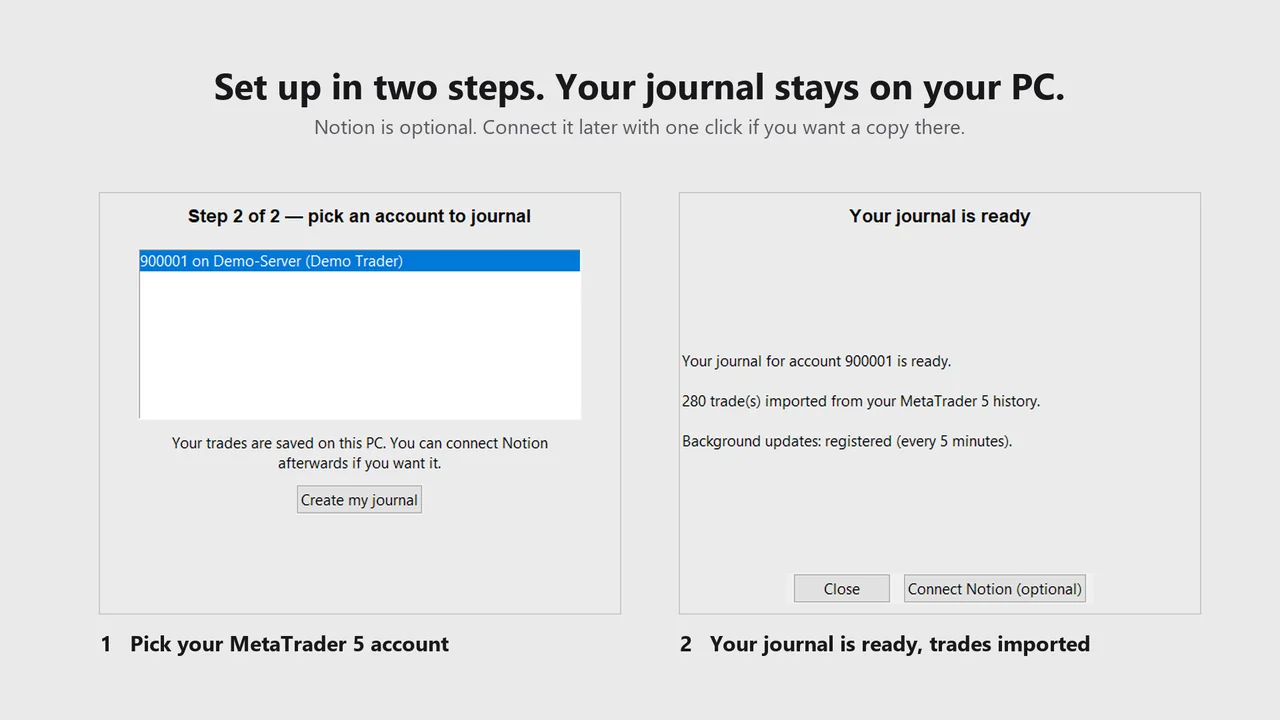
AI Trading Journal is the third kind. When you click Add Account and pick your logged-in MT5 account, it reads the whole history your broker holds for that account in one pass: every closed trade, every deposit and withdrawal and the balance of every past day. No file to export and no password to hand over. How the other two methods work, and how to export a report by hand, is in the MT5 history export guide.
What MetaTrader 5 actually holds
The History tab at the bottom of the terminal has three views: positions, orders and deals. Positions are the closed trades most people think of. Deals are the individual executions behind them, including the balance operations for deposits and withdrawals. If you right-click the tab you can choose the period to show, from today up to all history or a custom range, and the report you save follows that choice. Whatever you load into a journal can only be as complete as what the terminal has downloaded from your broker, which is why the period setting matters before you export anything.
Eight traps that make an import look right and be wrong
- The broker only keeps part of the history online. Some brokers hold a limited window, and a journal can only import what the terminal can show. Check the earliest date in the History tab first.
- A migrated account. If your broker moved you to a new account number, the old history is a different account. Add each one separately so the numbers do not mix.
- Server time. MT5 dates every trade on the broker’s server clock, which can run hours ahead of yours. A trade that closed at 00:10 server time belongs to the new day. A journal that uses your own clock will move trades between days and disagree with the terminal.
- Positions closed in parts. One position closed in three pieces is three deals. A good import groups them into one trade, dated by the last exit. A poor one counts three trades and triples your trade count.
- Deposits and withdrawals. They change your balance but are not trades. They should not appear as winners, losers or in the win rate.
- Commission and swap. The result of a trade is profit plus commission plus swap. A gross figure looks better and does not match your balance.
- Hedging and netting accounts. The two account types record positions differently, and a journal has to cope with both. See hedging versus netting trade history.
- Duplicates. Importing overlapping files twice counts the same trade twice. A direct read has no such problem, because it recognises trades it has already stored.
Check the import against your statement
Never trust an import until you have compared three numbers with your broker. It takes five minutes and catches almost every problem above.
| Check | Compare with | A mismatch usually means |
|---|---|---|
| Number of closed trades for a month | The History tab for the same month | Positions split into parts, or part of the history missing |
| Net trading result for that month | Your broker statement, excluding deposits | Costs left out, or deposits counted as profit |
| Balance at the end of a past day | The statement balance for that day | A deposit or withdrawal missing, or a date shifted by the server clock |
| The first date in the journal | The first date in the History tab | A history window cut by the broker |
What happens in AI Trading Journal
- The first run. Add Account reads the whole history in one pass. For a long history it takes about a minute. After that, a scheduled task runs every five minutes and adds anything new.
- Catch-up. If the PC was off for a week, the next run reads from the last day it saw, so nothing is missed.
- One entry per position. A position closed in parts is one entry with the parts added together, dated by the last exit, on the broker’s server clock.
- Net amounts. Profit plus commission plus swap, so the totals follow your balance.
- Your own notes are never overwritten. Notes, ratings, tags and screenshots are stored separately from the trade data, so a re-read only refreshes figures.
- After a restore on a new PC. The next sync reads your whole MT5 history again, so trades made after the backup date are added back. The backup guide has the steps.
Several accounts work the same way: add each one, and each gets its own journal, started and stopped independently. The multi-account guide covers the details.
What a full history unlocks
- A P&L calendar you can scroll back through, month by month.
- A growth curve on the Progress page that starts at your first trade.
- An Excel workbook for any past period, with a calendar tab for each month. See the Excel report guide.
- A sample large enough for a meaningful expectancy, rather than a guess.
Honest limits
- It reads what your broker holds. A broker that keeps only part of your history online can only return that part.
- MetaTrader 5 has to be open and logged in to the account during the import.
- Your history will contain no notes for old trades. You can add them afterwards on the Journal page, one trade at a time.
- It is a record of your own trading, not an audited statement. Compare a few figures with your broker before relying on them.
Frequently asked questions
Can AI Trading Journal import my old MT5 trades?
Do I need to export a report from MT5?
Why does my history start later than my first trade?
Will a re-import duplicate my trades or erase my notes?
How long does the first import take?
Related guides
- A local trading journal for MT5
- P&L calendar for MT5
- Trade notes, ratings and screenshots
- Trading progress and goals
- Back up your journal and move it to a new PC
- An offline trading journal for Windows
- How to set monthly trading goals
- How to tag trades
- Trade screenshots for your journal
- An MT5 trading journal with no subscription
- All trading journal comparisons
Import your history free for 7 days
Free for 7 days, no card required. After that, a one-time $19.99 purchase. No subscription. Also on the Microsoft Store.
One-time $19.99, no monthly fee · your MT5 login never leaves your PC · trades go into your own journal on your PC, not through our servers.
Start free 7-day trial