
Trading progress and goals: see whether you are really improving
A growth curve, month-by-month results and your own monthly profit target and loss limit, all built from your MT5 history. How to read it and how to set goals that help.
Progress is slower than a single good day
Most traders watch their balance and their last trade. Neither tells you whether you are getting better. A single good week can come from luck, and a single bad one can come from a perfectly sound plan meeting a rough market. Progress shows up over months, in whether the growth curve keeps rising, whether the green months outnumber the red ones, and whether your results stay inside the limits you set for yourself.
The Progress page of AI Trading Journal puts those long-run numbers on one screen, built from your whole MT5 history, and lets you set two goals for the current month: a profit target and a loss limit.
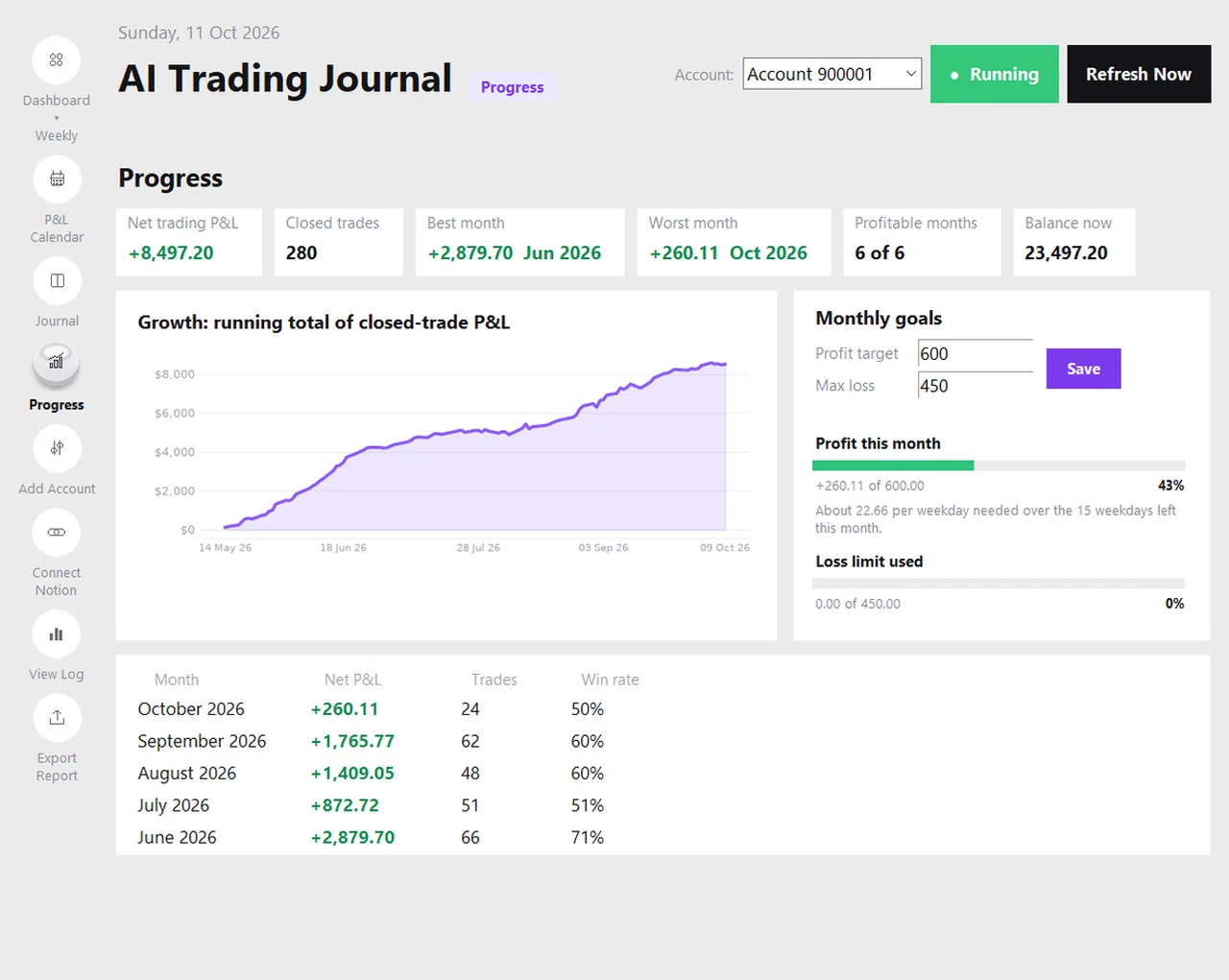
What the page shows
- A strip of totals: net trading P&L, closed trades, best month, worst month, profitable months (for example 6 of 6) and your balance now.
- The growth chart: the running total of closed-trade P&L from your first trade to today. A steady upward slope is the shape you want; a curve that rises sharply and gives it back tells a different story.
- Monthly goals: two boxes where you type a profit target and a maximum loss for the month, and two bars that fill as the month goes on.
- A months table: for the last several months, the net result, the number of trades and the win rate side by side.
The best-month and worst-month tiles are coloured by their sign, so a worst month that was still a profit shows in green. Everything on the page comes from the journal on your PC, so it works even when MetaTrader 5 is closed.
How the goal bars work
Enter a profit target for the month, for example 600, and a maximum loss, for example 450, and press Save. The first bar, Profit this month, shows how much of the target you have reached so far, as a figure and as a percentage. Under it a hint does the arithmetic you would otherwise do in your head: it divides what is still missing by the number of weekdays left in the month and tells you roughly what you would need to make per day. The second bar, Loss limit used, fills only when the month is negative, and shows how much of your allowed loss you have already used.
Goals are stored inside your journal on your own PC, one set per account, so they are included in every backup, and nothing about them is sent anywhere. The page does not send alerts or stop you trading. It is a mirror, not a rule. If you want a hard stop, write it into your trading plan, and use the bar to see how close you are.
How to set goals that help
- Set the loss limit first. It protects the account, and a month that hits it is a month to review, not to win back.
- Keep the profit target modest and tied to your size. A target far above what your risk per trade can produce pushes you to size up or force trades. Work backwards from your average result per trade and the number of trades you plan to take.
- Prefer a range to a number. A target of +2 to +4 per cent of the account is less dangerous than a single figure you feel you must hit on the last Friday.
- Add a process goal next to the money goal. For example “follow my plan on every trade”. The Journal page's plan-followed field lets you count how many trades you did.
- Review the goal at the end of the month, not during it. Looking at the bar every hour tends to change behaviour.
A monthly review in ten minutes
| Step | Where to look | Question |
|---|---|---|
| 1 | Progress strip | Is this month above or below my average month? |
| 2 | Growth chart | Is the slope steady, or did one trade or one week do the work? |
| 3 | Goal bars | Did I reach the target, and did I stay inside the loss limit? |
| 4 | P&L Calendar | Which days drove the result, and were they planned? |
| 5 | Journal page, filtered to losses | What do my worst trades have in common? Setup, emotion, time of day? |
| 6 | Export Report | Save the month as an Excel workbook for your records |
The weekly review checklist covers the shorter routine, and the monthly performance report guide shows what to include when you write one up.
The dashboard has periods too
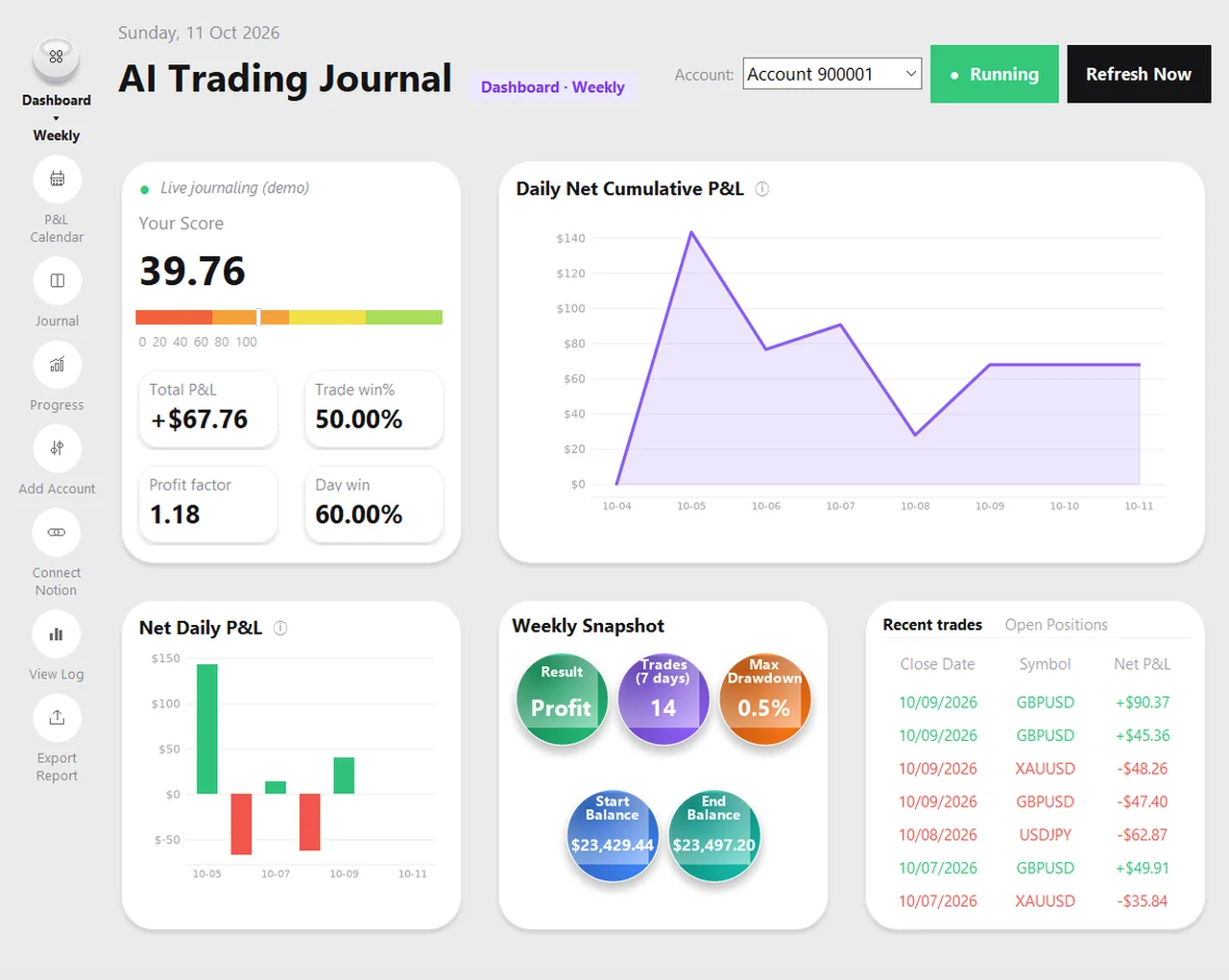
Progress looks at the long run. For shorter windows, the Dashboard button in the sidebar opens a menu with Daily, Weekly, Monthly and All time. Choosing one redraws the score, the win rate, the profit factor, the charts and the snapshot for that window, and the start and end balance follow it. A Weekly view, for instance, covers the last seven days. Use the dashboard for how a recent stretch went, and Progress for whether the long run is improving.
What Progress does not do
- It does not predict anything. Past results say nothing certain about the next month.
- It does not account for deposits and withdrawals in the monthly results. Those move your balance, not your trading P&L.
- It is not an audited statement. It is a record of your own trades, built from your own terminal.
- It is not advice. Goals are yours to set, and no target is a promise.
To see the rest of the journal, read the local journal guide. For the habit side of goals, trading discipline rules shows how to score how often you follow your own rules.
Frequently asked questions
Where are my goals stored?
Does the loss limit stop me from trading?
Why does the page work when MetaTrader 5 is closed?
How far back does Progress go?
Related guides
- A local trading journal for MT5
- P&L calendar for MT5
- Trade notes, ratings and screenshots
- Back up your journal and move it to a new PC
- An offline trading journal for Windows
- How to set monthly trading goals
- Import your whole MT5 history
- How to tag trades
- Trade screenshots for your journal
- An MT5 trading journal with no subscription
- All trading journal comparisons
Track your own progress free for 7 days
Free for 7 days, no card required. After that, a one-time $19.99 purchase. No subscription. Also on the Microsoft Store.
One-time $19.99, no monthly fee · your MT5 login never leaves your PC · trades go into your own journal on your PC, not through our servers.
Start free 7-day trial