
MT5 server time: which clock your trades use and how to convert it
MetaTrader 5 stamps every trade with your broker’s clock, not yours. How to find it, convert it and keep your journal consistent.
Which clock MetaTrader 5 uses
MetaTrader 5 does not use your computer’s clock for trades and price bars. It uses the server time of your broker, which is the clock of the trading server your terminal is connected to. That clock is usually a few hours ahead of UTC and is chosen by the broker, not by you and not by MetaTrader. Every trade you open or close, every candle on a chart and every line in the History tab carries that time.
This matters more than it sounds. A trade that closed at ten past midnight on the server belongs to the next trading day in your History tab, even if it is still the evening of the previous day where you live. A session indicator can look an hour off for the same reason. And rules that depend on a daily reset, such as swap or a daily loss limit, usually follow a clock that is not yours.
Three ways to find your broker’s server time
| Method | How | Good for |
|---|---|---|
| Market Watch clock | Press Ctrl+M or choose View, Market Watch. The clock at the top of the panel shows the server time. | A quick check any time |
| Compare with UTC | Note the Market Watch time and the current UTC time from a reliable time site. The difference is your offset. | Getting the offset in hours |
| Check the broker | Many brokers state their server time or GMT offset on their support or platform pages. | Confirming the offset and when it changes |
Example, with invented numbers: if Market Watch shows 15:00 while UTC is 12:00, the server offset is UTC+3. If your own time zone is UTC+4, the server is one hour behind you, so a trade stamped 15:00 on the server happened at 16:00 on your clock.
Daylight saving makes the offset move
Many brokers shift their server clock twice a year, often so that the trading day lines up with the New York close. A common pattern is UTC+2 in winter and UTC+3 in summer, but that is a pattern and not a rule: your broker may do something else, and the dates it changes can differ from yours. Measure the offset again after the clocks change instead of relying on a value you wrote down months ago.
| Your own clock | Server clock | What to do |
|---|---|---|
| Changes with daylight saving on a different date | Changes on its own date | For a week or two the gap between you and the server is not what you are used to. Re-measure it. |
| Does not change at all | Changes twice a year | The gap changes by an hour twice a year. |
| Same as the server | Same | No conversion needed. |
Why server time matters for a trading journal
- Which day a trade belongs to. Daily results, the calendar and weekly totals all depend on where midnight falls. If your journal uses your clock but your broker’s statement uses the server clock, the two will disagree on a few trades every week.
- Best hours. If you want to know when you trade well, you have to bucket trades by hour. Decide first whether you mean server hours or your own, and keep that choice. The best-time guide shows how.
- Swap and rollover. A position is usually charged or credited swap when it is held across the server’s midnight. See MT5 swap explained.
- Daily limits. If you trade a funded account, check how that firm defines its daily reset. It may not match the server clock, your clock or the calendar day you expect.
How AI Trading Journal handles it
AI Trading Journal reads your trades from the MetaTrader 5 terminal on your PC and keeps the broker’s server clock for everything: the open and close time of each trade, which day a trade counts for, the P&L calendar, the dashboard and the Excel report. That is a deliberate choice. The numbers then match the History tab of your terminal and your broker’s statement, which are the figures you will compare them with. A position closed in several parts counts as one trade on the day of its last exit.
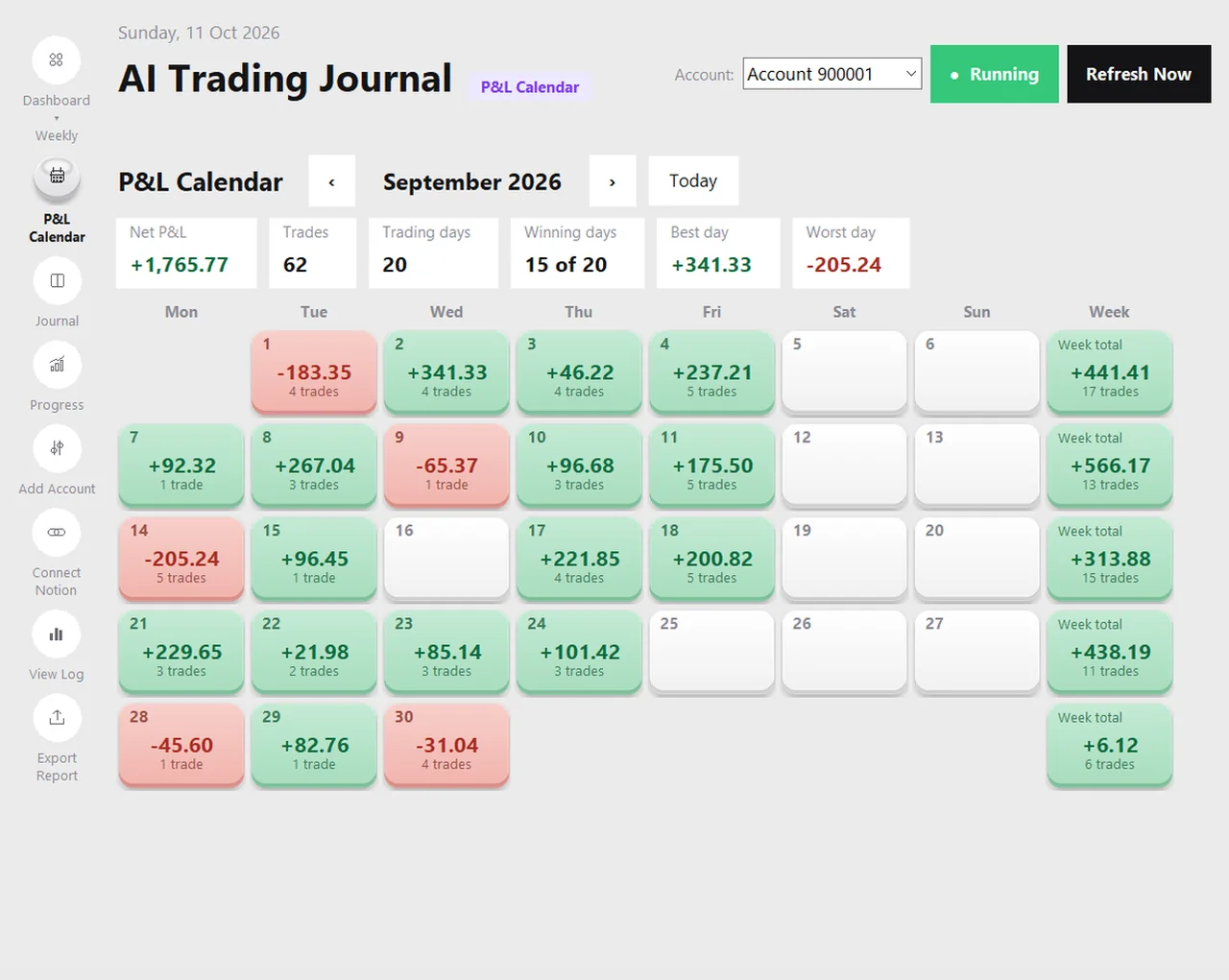
If you want your own clock instead, export the report to Excel and add a column that adds your offset to the open and close time. The Excel report guide describes the Trades sheet.
A short checklist
- Open Market Watch and write down the server time and the UTC time today.
- Work out the offset and write it next to the date you measured it.
- Set a reminder to re-measure it after your broker and your own country change their clocks.
- In your journal and in any spreadsheet, keep one clock for every row.
- When you compare numbers with a broker statement, compare on the broker’s clock.
Honest limits
- I cannot tell you your broker’s offset. Measure it in your own terminal, because it differs between brokers and can change.
- Prop firms and brokers define their own daily reset times. Read your firm’s rules instead of assuming it matches the server clock.
- This page is general information about how the terminal works, not trading advice.
Related: the MT5 History tab explained, how to export your MT5 trade history and reading MT5 history with Python.
A practical use of the offset: tag gold trades by session, as shown in gold trading sessions in your journal.
Once you know your broker’s offset, the forex session times converter shows when each session falls on your own clock.
Planning around a scheduled event? The Market Watch pages list the official dates each week and explain how clock changes move the times.
Frequently asked questions
What time zone does MetaTrader 5 use?
How do I find my MT5 server time?
Does the server time change with daylight saving?
Which clock does AI Trading Journal use?
Why does a trade show on a different day than I expected?
Related guides
- A local trading journal for MT5
- P&L calendar for MT5
- Trade notes, ratings and screenshots
- Trading progress and goals
- Back up your journal and move it to a new PC
- An offline trading journal for Windows
- How to set monthly trading goals
- Import your whole MT5 history
- How to tag trades
- Trade screenshots for your journal
- All trading journal comparisons
Keep your journal on the broker clock: free for 7 days
Free for 7 days, no card required. After that, a one-time $19.99 purchase. No subscription. Also on the Microsoft Store.
One-time $19.99, no monthly fee · your MT5 login never leaves your PC · trades go into your own journal on your PC, not through our servers.
Start free 7-day trial