
A trade tracker for MT5 that tracks every trade without typing
Four ways to track MetaTrader 5 trades, what a good tracker should show and how one that reads your terminal works. No broker password, no subscription.
What people mean by a trade tracker
Search for a trade tracker and you find three different things: apps that watch your open positions and prices, spreadsheets you update yourself, and tools that record every closed trade and show how you are doing. This page is about the third. A trade tracker, in that sense, answers four questions without effort: how many trades did I take, what did they make, where did the money come from and how is the trend changing.
For MetaTrader 5, a good tracker should read the account itself, so nothing is typed. It should show results by day, week and month, keep the history when you change PC and let you add your own notes. The rest of this page lists what to look for and shows how AI Trading Journal does it.
Four ways to track MT5 trades
| Method | Effort | Where the data lives | Catch |
|---|---|---|---|
| Look at the History tab | None | Your terminal | Limited views, no notes, and no easy way to compare months |
| A spreadsheet you update | High | A file you own | You type every trade. The trade log template helps, but typing is the cost |
| A cloud tracker with broker sync | Low | The vendor’s servers | A subscription, and often your investor password or an Expert Advisor that sends data out |
| A local tracker that reads the terminal (this one) | Low | A file on your PC | Windows and MetaTrader 5 only, and the terminal must be open |
The comparison of automatic tracking methods goes through the four in more detail.
What a tracker should show you
- Results over time: a cumulative curve and daily results, so you see the trend and not only today.
- Counts and rates: trades, win rate, profit factor, average win and average loss.
- A calendar: every day as a coloured tile, so patterns by weekday and week are visible at a glance. See the P&L calendar guide.
- Breakdowns: by symbol, by weekday and by hour.
- Goals: a profit target and a loss limit for the month, and how much of each you have used. See progress and goals.
- History: the whole account, not only the days since you installed it.
- Several accounts: each tracked separately. See the multi-account guide.
How AI Trading Journal tracks your trades
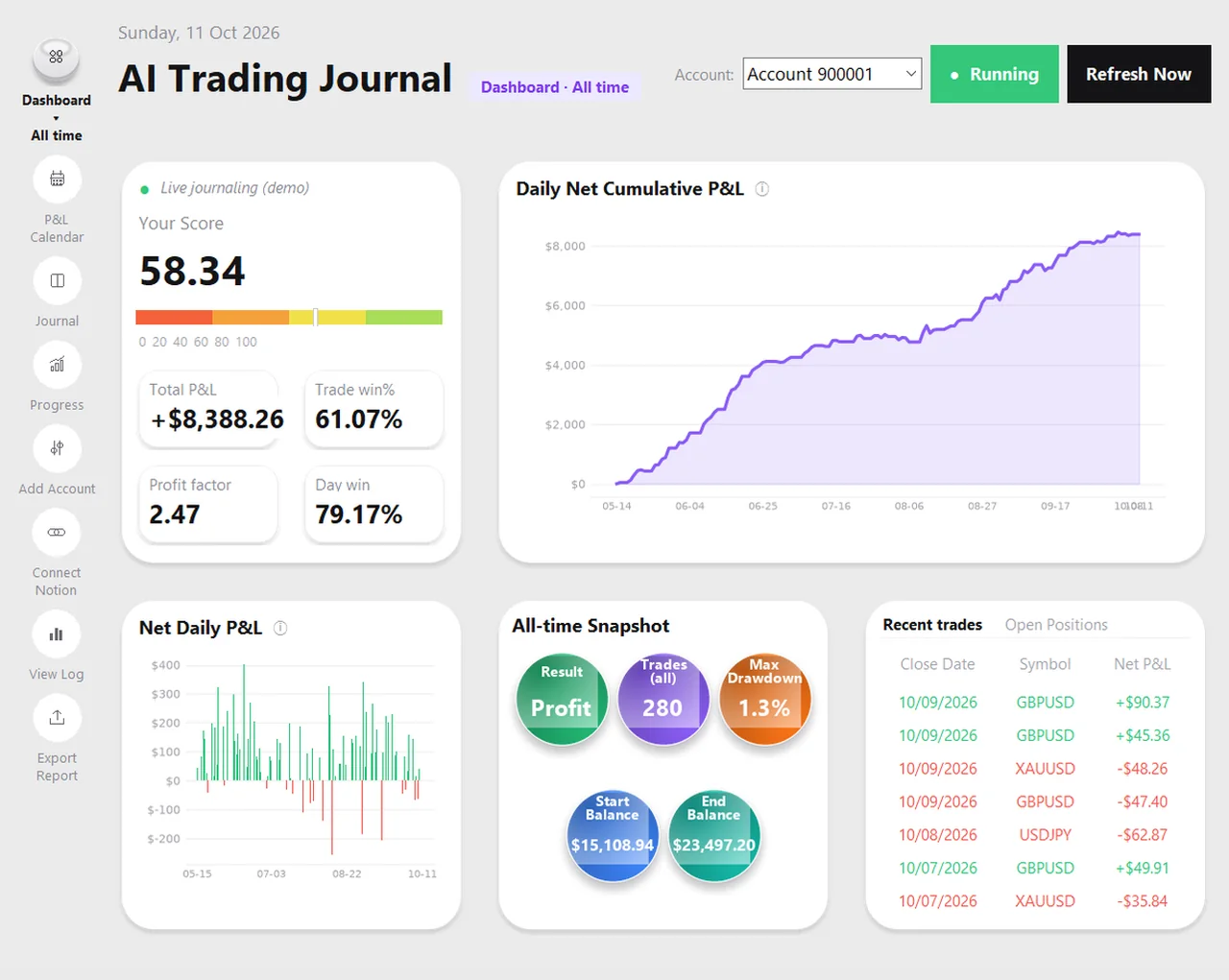
It is a Windows app that reads your logged-in MetaTrader 5 terminal. You click Add Account, pick the account and click Create my journal. It reads the account’s whole history once, then a scheduled task adds new closed trades every five minutes. Nothing is typed, no broker password is needed and the app only ever reads: it never places, modifies or closes a trade.
- Dashboard with a score, win rate, profit factor, cumulative and daily P&L and recent trades, switchable between Daily, Weekly, Monthly and All time.
- P&L calendar with weekly totals and a month summary.
- Progress page with a growth curve, month-by-month results and your monthly goals.
- Journal page where you add a setup, emotion, rating, tags, notes and screenshots to any trade.
- Excel report for any period, with six charts, a daily sheet, a trades sheet and a calendar tab per month.
- Daily backups and a journal that lives in your Documents folder, so uninstalling the app does not remove it.
Tracker or journal?
A tracker tells you how you are doing. A journal tells you why. They are the same data seen from two sides, and you want both: the tracker to show where the problem is and the journal to show what caused it. AI Trading Journal is both in one file. If you only want the numbers, you can ignore the notes and use the dashboard, the calendar and the report. If you want the reasons too, they are one click away on each trade. The difference is explained in trade log versus trading journal.
What it costs
There is a 7-day free trial with no card, and then a one-time payment of $19.99 with no subscription. Your journal is a file in your own Documents folder, so it stays with you even if you stop. The no-subscription guide works through the cost over three years against the alternatives.
Honest limits
- It is for MetaTrader 5 only. MT4 and cTrader are not supported.
- It is a Windows desktop app. There is no phone or web version.
- MetaTrader 5 has to be open and logged in for new trades to be read.
- It records closed positions, not live floating results.
- It is a record of your own trading, not an audited statement. Compare a few figures with your broker.
If you are choosing between trackers, the comparison pages set it against the main cloud journals, and free MT5 journal options lists the free routes honestly. To measure a result as you trade, the R multiple calculator and the position size calculator are free.
Frequently asked questions
What is the best way to track trades on MetaTrader 5?
Is there a free trade tracker for MT5?
Does a trade tracker need my broker password?
Can I track several accounts?
Does it track open trades?
Related guides
- A local trading journal for MT5
- P&L calendar for MT5
- Trade notes, ratings and screenshots
- Trading progress and goals
- Back up your journal and move it to a new PC
- An offline trading journal for Windows
- How to set monthly trading goals
- Import your whole MT5 history
- How to tag trades
- Trade screenshots for your journal
- All trading journal comparisons
Track your trades automatically: free for 7 days
Free for 7 days, no card required. After that, a one-time $19.99 purchase. No subscription. Also on the Microsoft Store.
One-time $19.99, no monthly fee · your MT5 login never leaves your PC · trades go into your own journal on your PC, not through our servers.
Start free 7-day trial